

Best Android emulator PC solutions are transforming the way users interact with Android apps on desktop computers. Whether you are a gamer seeking a larger screen experience, a developer testing applications, or someone who prefers the efficiency of a keyboard and mouse, using an emulator provides the flexibility to enjoy Android features on a PC.
With the surge in mobile app usage and the need for cross-platform functionality, knowing the right best Android emulator PC can save time, reduce technical hassles, and enhance productivity.
Why Use an Android Emulator on PC
Android emulators bridge the gap between mobile and desktop platforms. Instead of switching devices constantly, users can access Android apps directly on their PC. For gamers, this means leveraging high-resolution displays and powerful processors to achieve smoother gameplay. For developers, emulators provide a controlled environment to test applications on different Android versions without buying multiple devices.
Choosing the best Android emulator PC ensures that applications run without lag, crashes, or compatibility issues. It also provides features like multiple instance support, keyboard mapping, and enhanced graphics rendering for an optimal experience.
Popular Android Emulators for PC
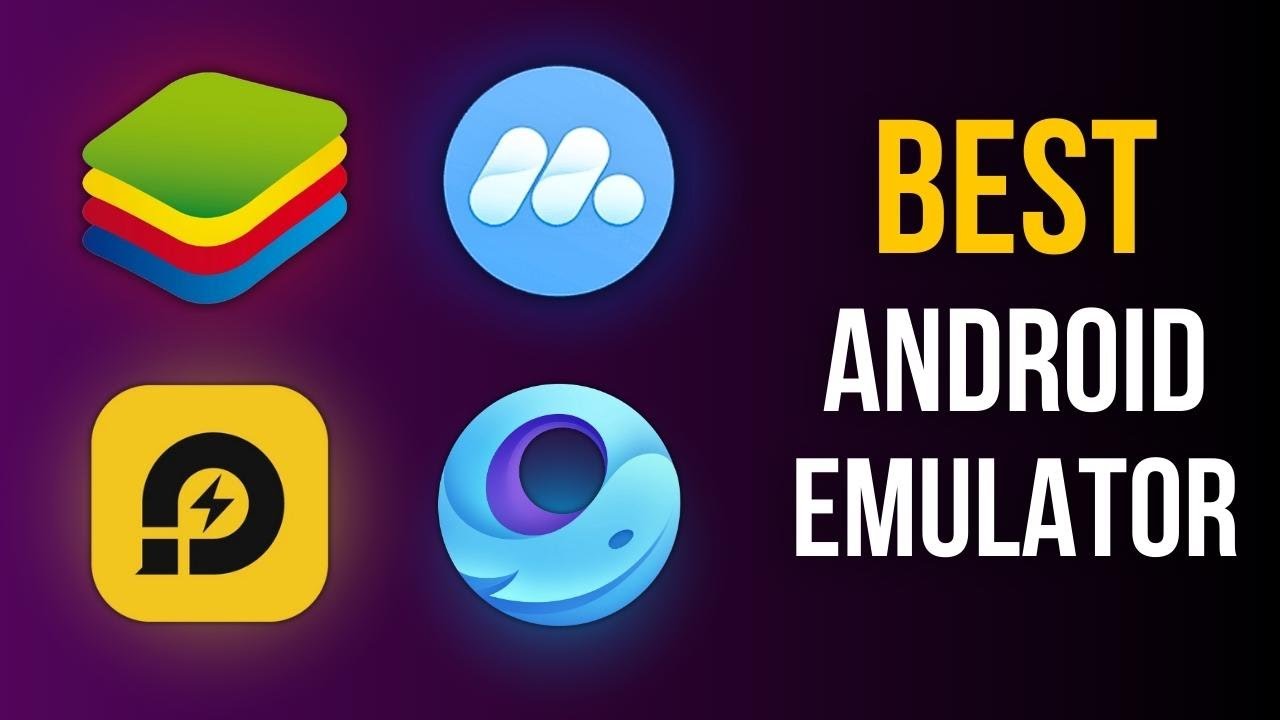
Several emulators have become popular due to their robust features and reliable performance. Bluestacks, Nox Player, LDPlayer, and Memu Play are among the top choices.
Bluestacks is particularly favored for gaming due to its performance optimization and intuitive interface. Nox Player offers deep customization, including keyboard mapping, macros, and multi-instance operation. LDPlayer focuses on speed and stability, making it ideal for both apps and games. Memu Play stands out for its lightweight design and efficient resource usage, suitable for older PCs.
Selecting the best Android emulator PC depends on your specific needs, whether it’s gaming, app testing, or general productivity.
Performance Considerations
Performance is a crucial factor when choosing an emulator. High CPU usage, slow graphics, and lag can ruin the experience. PCs with modern processors, dedicated graphics cards, and 8GB or more of RAM tend to run emulators smoothly.
Enabling virtualization technology in your system BIOS can dramatically improve performance. Updating graphics drivers, closing unnecessary background applications, and allocating sufficient RAM to the emulator ensures a seamless Android experience. A well-optimized best Android emulator PC will handle heavy applications like PUBG Mobile or Adobe apps without slowing down your system.
Features to Look For
When evaluating the best Android emulator PC, certain features enhance usability:
-
Multi-instance support: Allows running multiple apps or games simultaneously.
-
Keyboard and mouse mapping: Translates touch controls to keyboard or mouse input for better control.
-
Root access: Useful for testing apps that require system-level permissions.
-
High-resolution support: Provides a sharper display for apps and games.
These features ensure that the emulator is not just functional but also tailored to your workflow, whether for gaming or development.
Real-Life Applications
Gamers often choose a best Android emulator PC to play mobile games on a larger screen with better control options. For example, using Bluestacks or LDPlayer, they can enjoy PUBG Mobile, Call of Duty Mobile, or Genshin Impact with smoother frame rates and customizable key layouts.
Developers rely on emulators to test apps across various Android versions without physical devices. For instance, an app developer can quickly identify bugs or UI issues on multiple screen sizes using multi-instance setups.
Businesses and productivity enthusiasts use emulators to run communication apps like WhatsApp, Slack, or Zoom directly on their desktops. This enables multitasking and faster typing without switching devices constantly.
Security and Reliability
Security is another major consideration. Trusted emulators sandbox apps to prevent malware from affecting your PC. They also receive regular updates and patches, ensuring stable operation and protection against vulnerabilities.
A reliable best Android emulator PC allows users to safely install APKs from verified sources. Users can avoid the risk of data breaches or unauthorized access while running applications in a virtual environment.
User Experience and Interface
The user interface of an emulator plays a significant role in overall satisfaction. Easy navigation, intuitive settings, and responsive controls contribute to a smoother experience.
Most leading emulators offer drag-and-drop installation, customizable screen resolutions, and straightforward configuration menus. This ensures that even users with minimal technical knowledge can set up a best Android emulator PC without frustration.
Tips to Optimize Emulator Usage
To maximize your emulator experience, consider these strategies:
-
Allocate sufficient system resources: More RAM and CPU cores can enhance performance.
-
Use SSD storage: Loading times are faster, and apps run more smoothly.
-
Adjust graphics settings: Optimize for your PC to avoid frame drops.
-
Keep software updated: Emulator updates often fix bugs and enhance security.
Following these tips guarantees a more seamless experience while using Android apps on a PC.
The Future of Android Emulation
Emulation technology is evolving rapidly. Cloud-based emulators, AI-driven performance optimization, and enhanced graphics support are becoming mainstream. Future best Android emulator PC solutions will likely integrate more closely with Google Play, ARM-based apps, and desktop workflows, providing even more efficient and seamless experiences.
As more developers and gamers adopt emulators, the technology will continue to improve, making it easier than ever to run Android apps on Windows and Mac systems without compromise.
Read also:
portland trail blazers vs phoenix suns stats
garena free fire max redeem codes 2025
cleveland browns vs baltimore ravens match player stats
fok959s-m model
keira knightley net worth
quenlin blackwell age
manas dhamne
chandu kumar